Building a Fortified Microservice: The Microservices Workshop (Part 1/3)
Stop deploying insecure containers. Learn how to architect a 'Fortified' microservice on GCP with Private Cloud SQL, WAF protection, and zero-trust ingress.
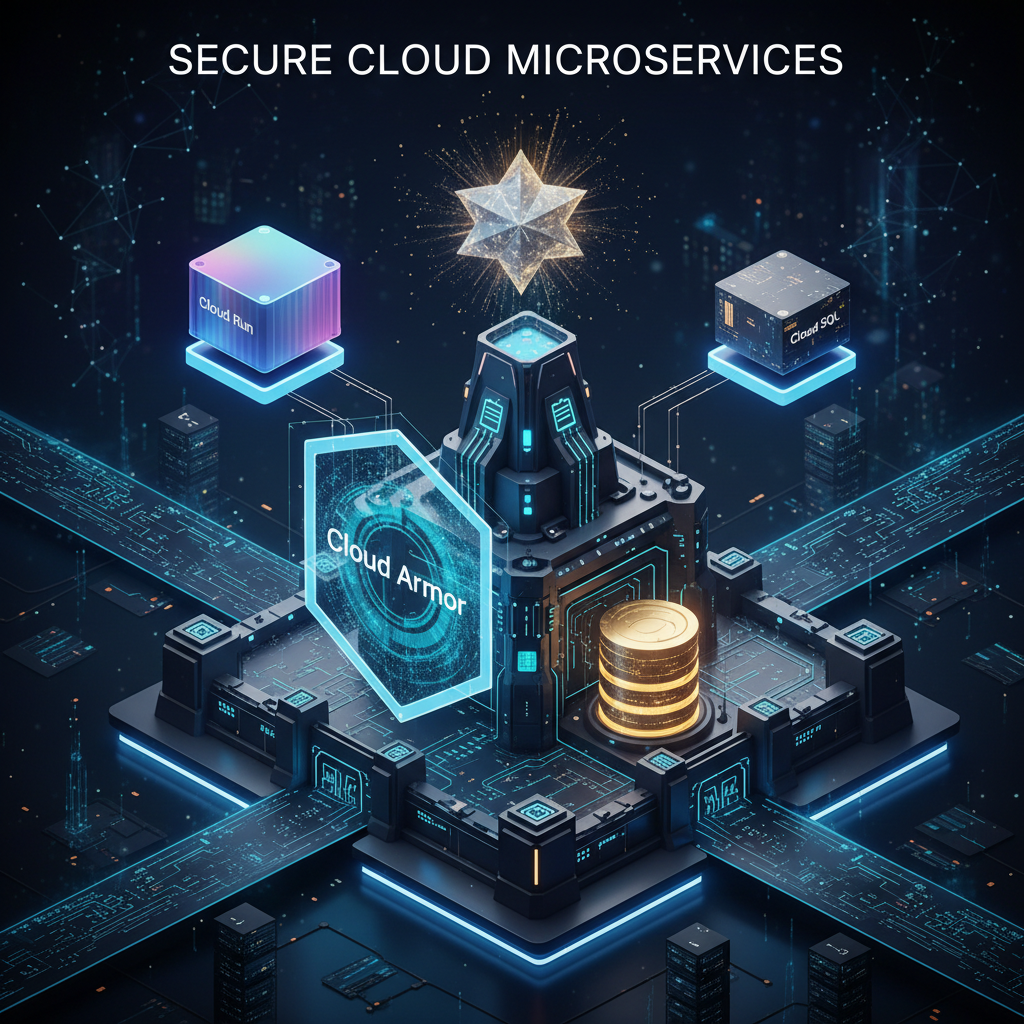
Building a Fortified Microservice: The Microservices Workshop (Part 1/3)
Most cloud tutorials follow a path of “least resistance.” They show you how to get a container running as fast as possible, often sacrificing security for simplicity. You end up with public databases, wide-open ingress, and default service accounts.
In the real world, this is a liability.
Welcome to Part 1 of the Microservices Workshop Series. Today, we aren’t just deploying Go code; we are building a Fortress.
View the full source code on GitHub Technical Documentation Table of Contents
The Blueprint: Security by Design
Before writing a single line of code, we defined a “Zero Trust” architecture for our microservice. Here is how it looks:
The Core Pillars
- Isolation: The database has NO public IP. It lives entirely in a private VPC.
- Identity: The application runs under a dedicated Service Account with the absolute minimum permissions (Least Privilege).
- Edge Security: A Global Load Balancer combined with Cloud Armor acts as a Web Application Firewall (WAF) to block SQL Injection at the door.
- Closed Backdoor: Cloud Run is configured to reject any traffic that doesn’t come directly from our Load Balancer.
The Journey
I’ve structured this workshop into logical modules. Each step is detailed below so you can follow along.
Prerequisites
- Go 1.25.6+ installed.
- Google Cloud SDK (
gcloud) installed and authenticated. - Cloud SQL Auth Proxy installed.
- PostgreSQL Client (
psql) installed. - Billing enabled on your Google Cloud Project.
Automated Setup Scripts
I’ve created scripts to verify and install dependencies. You can create a file named setup.sh (Linux) or setup_mac.sh (macOS) with the following content:
Linux (setup.sh):
1
2
3
4
5
6
7
#!/bin/bash
set -e
echo "Checking and Installing Dependencies..."
read -p "This script will install Go 1.25.6, Google Cloud SDK, Cloud SQL Proxy, and PostgreSQL Client. Do you want to proceed? (y/N) " response
if [[ ! "$response" =~ ^([yY][eE][sS]|[yY])$ ]]; then exit 1; fi
# ... (Install commands for Go, gcloud, Proxy, psql)
echo "Dependency check complete!"
Run it with chmod +x setup.sh && ./setup.sh.
Part 1: The Foundation (Database)
We start by creating the storage layer. We will use Cloud SQL (PostgreSQL).
1. Environmental Setup
Open your terminal and set these variables to save time later.
1
2
3
4
5
6
export PROJECT_ID="your-project-id-here"
export REGION="us-central1"
export DB_PASS="<YOUR_SECURE_PASSWORD>" # CHANGE THIS!
export INSTANCE_NAME="workshop-db"

gcloud config set project $PROJECT_ID
2. Authentication
Log in to Google Cloud and set up application default credentials.
1
2
gcloud auth login --no-launch-browser
gcloud auth application-default login --project $PROJECT_ID --no-launch-browser
3. Enable Google Cloud APIs
1
2
3
4
5
6
gcloud services enable \
    sqladmin.googleapis.com \
    run.googleapis.com \
    compute.googleapis.com \
    servicenetworking.googleapis.com \
    logging.googleapis.com
4. Network Setup
We need a secure private network (VPC) for our services to communicate.
1
2
3
4
5
6
7
8
9
10
11
12
13
14
15
16
17
18
# 1. Create VPC and Subnet
gcloud compute networks create workshop-vpc --subnet-mode=custom
gcloud compute networks subnets create workshop-subnet \
    --network=workshop-vpc \
    --range=10.0.0.0/24 \
    --region=$REGION

# 2. Configure Private Service Access (for Cloud SQL)
gcloud compute addresses create google-managed-services-default \
    --global \
    --purpose=VPC_PEERING \
    --prefix-length=16 \
    --network=workshop-vpc

gcloud services vpc-peerings connect \
    --service=servicenetworking.googleapis.com \
    --ranges=google-managed-services-default \
    --network=workshop-vpc
5. Create Database Instance & User
Note: This step takes 5-10 minutes.
1
2
3
4
5
6
7
8
9
10
11
12
# Create the instance
gcloud sql instances create $INSTANCE_NAME \
    --database-version=POSTGRES_16 \
    --tier=db-f1-micro \
    --edition=ENTERPRISE \
    --region=$REGION \
    --root-password=$DB_PASS \
    --network=workshop-vpc \
    --no-assign-ip

# Create the specific database
gcloud sql databases create users_db --instance=$INSTANCE_NAME
6. Seed the Data
Since we disabled the public IP, we connect via the Cloud SQL Auth Proxy.
- Enable Public IP (Temporarily):
gcloud sql instances patch $INSTANCE_NAME --assign-ip - Start Proxy:
./cloud-sql-proxy --port=5433 $PROJECT_ID:$REGION:$INSTANCE_NAME - Run SQL:
1
PGPASSWORD=$DB_PASS psql --host=127.0.0.1 --port=5433 --username=postgres --dbname=postgres
- SQL Commands:
1
2
3
4
5
6
7
CREATE USER go_workshop WITH PASSWORD '<YOUR_SECURE_PASSWORD>';
ALTER DATABASE users_db OWNER TO go_workshop;
\c users_db;
GRANT ALL ON SCHEMA public TO go_workshop;
CREATE TABLE IF NOT EXISTS users (id SERIAL PRIMARY KEY, username VARCHAR(50), email VARCHAR(100));
ALTER TABLE users OWNER TO go_workshop;
INSERT INTO users (username, email) VALUES ('cloud_runner', 'runner@example.com');
- Disable Public IP:
gcloud sql instances patch $INSTANCE_NAME --no-assign-ip
Part 2: The Application (Go)
We build a Go service using Dependency Injection and a clean directory structure.
1. Initialize Project
1
2
3
4
mkdir go-workshop && cd go-workshop
go mod init github.com/youruser/go-workshop
mkdir models handlers middleware
go get github.com/jackc/pgx/v4
2. The Code
We implement models/user.go (Structs), middleware/basic_auth.go (Security), and handlers/user_handler.go (Business Logic).
The Entry Point (main.go):
1
2
3
4
5
6
7
8
9
10
11
12
13
14
15
16
17
package main
// ... imports ...

func main() {
    // Connect to DB using standard PGX driver
	dsn := fmt.Sprintf("host=%s port=%s user=%s password=%s dbname=%s sslmode=disable",
		os.Getenv("DB_HOST"), os.Getenv("DB_PORT"), os.Getenv("DB_USER"), os.Getenv("DB_PASS"), os.Getenv("DB_NAME"))
	db, _ := sql.Open("pgx", dsn)

    // Wrap Handler with Middleware
	authHandler := &middleware.BasicAuth{
		Username: os.Getenv("AUTH_USER"),
		Password: os.Getenv("AUTH_PASS"),
		Next:     &handlers.UserHandler{DB: db},
	}
	http.ListenAndServe(":"+os.Getenv("PORT"), authHandler)
}
AI-Assisted Testing: One of the coolest parts of this workflow is that all unit tests were generated by Gemini. By using standard interfaces and dependency injection, we could simply ask the AI: “Generate table-driven tests for this handler using go-sqlmock”, and it produced robust, ready-to-run test code.
3. Containerization
We create a multi-stage Dockerfile using golang:1.25.6-trixie for building and debian:trixie-slim for the runtime to ensure a small, secure footprint.
Part 4: Deployment (Cloud Run)
1. Service Account Setup
The app needs an identity. We create workshop-sa and grant it only roles/cloudsql.client.
1
2
3
4
gcloud iam service-accounts create workshop-sa --display-name="Workshop SA"
gcloud projects add-iam-policy-binding $PROJECT_ID \
    --member="serviceAccount:workshop-sa@$PROJECT_ID.iam.gserviceaccount.com" \
    --role="roles/cloudsql.client"
2. Deploy
We build the container and deploy it, connecting it to our VPC so it can reach the private database.
1
2
3
4
5
6
7
8
9
10
11
12
13
14
15
16
17
18
19
20
21
22
23
24
25
# Build
cd go-workshop
gcloud builds submit --tag gcr.io/$PROJECT_ID/go-workshop
cd ..

# Get Private IP
export DB_HOST=$(gcloud sql instances describe $INSTANCE_NAME \
    --flatten="ipAddresses[]" \
    --format="csv[no-heading](ipAddresses.ipAddress, ipAddresses.type)" | grep ",PRIVATE" | cut -d',' -f1)

# Deploy with Direct VPC Egress
gcloud run deploy go-service \
    --image gcr.io/$PROJECT_ID/go-workshop \
    --region $REGION \
    --allow-unauthenticated \
    --service-account workshop-sa@$PROJECT_ID.iam.gserviceaccount.com \
    --network=workshop-vpc \
    --subnet=workshop-subnet \
    --set-env-vars DB_HOST="$DB_HOST" \
    --set-env-vars DB_PORT="5432" \
    --set-env-vars DB_USER="go_workshop" \
    --set-env-vars DB_NAME="users_db" \
    --set-env-vars DB_PASS="$DB_PASS" \
    --set-env-vars AUTH_USER="admin" \
    --set-env-vars AUTH_PASS="<YOUR_AUTH_PASSWORD>"
Part 5 & 6: The Shield (Load Balancer & Cloud Armor)
Finally, we put the service behind a Global Load Balancer and attach a Cloud Armor security policy.
- Reserve IP:
gcloud compute addresses create workshop-lb-ip --global - Create NEG:
gcloud compute network-endpoint-groups create go-service-neg ... - Setup Load Balancer: Create Backend Service, URL Map, Proxy, and Forwarding Rule.
- Cloud Armor: Create a policy
workshop-armor-policywith ruleevaluatePreconfiguredExpr('sqli-stable')to block SQL injection. - Restrict Ingress:
1
gcloud run services update go-service --region $REGION --ingress internal-and-cloud-load-balancing
Final Verification
Test your fortified service:
- Valid Request:
curl -u admin:<PASS> http://[LB_IP]/-> 200 OK (JSON Data) - Direct Access:
curl https://[RUN_URL].run.app-> 403 Forbidden (Access Denied) - SQL Injection:
curl "http://[LB_IP]/?id=1' OR 1=1"-> 403 Forbidden (Blocked by WAF)
Detailed Documentation
For a deep dive into the technical specifics, including architecture diagrams, line-by-line code explanations, and script breakdowns, visit the detailed documentation in the repository:
Technical Documentation Table of Contents View the full source code on GitHub
Conclusion
You have successfully built a secure, scalable microservice architecture on GCP. This isn’t just a demo; it’s a production-ready pattern you can adapt for your own applications.
What’s Next?
In Part 2, we will add distributed caching with Cloud Memorystore (Valkey) and evolve our Basic Auth into a robust JWT-based Authentication system. Stay tuned!
Published on nja.dev — January 2026