🛡️ Building a Fortified Microservice: The Microservices Workshop (Part 1/3)
Stop deploying insecure containers. Learn how to architect a 'Fortified' microservice on GCP with Private Cloud SQL, WAF protection, and zero-trust ingress.
🛡️ Building a Fortified Microservice: The Microservices Workshop (Part 1/3)
Most cloud tutorials follow a path of “least resistance.” They show you how to get a container running as fast as possible, often sacrificing security for simplicity. You end up with public databases, wide-open ingress, and default service accounts.
In the real world, this is a liability.
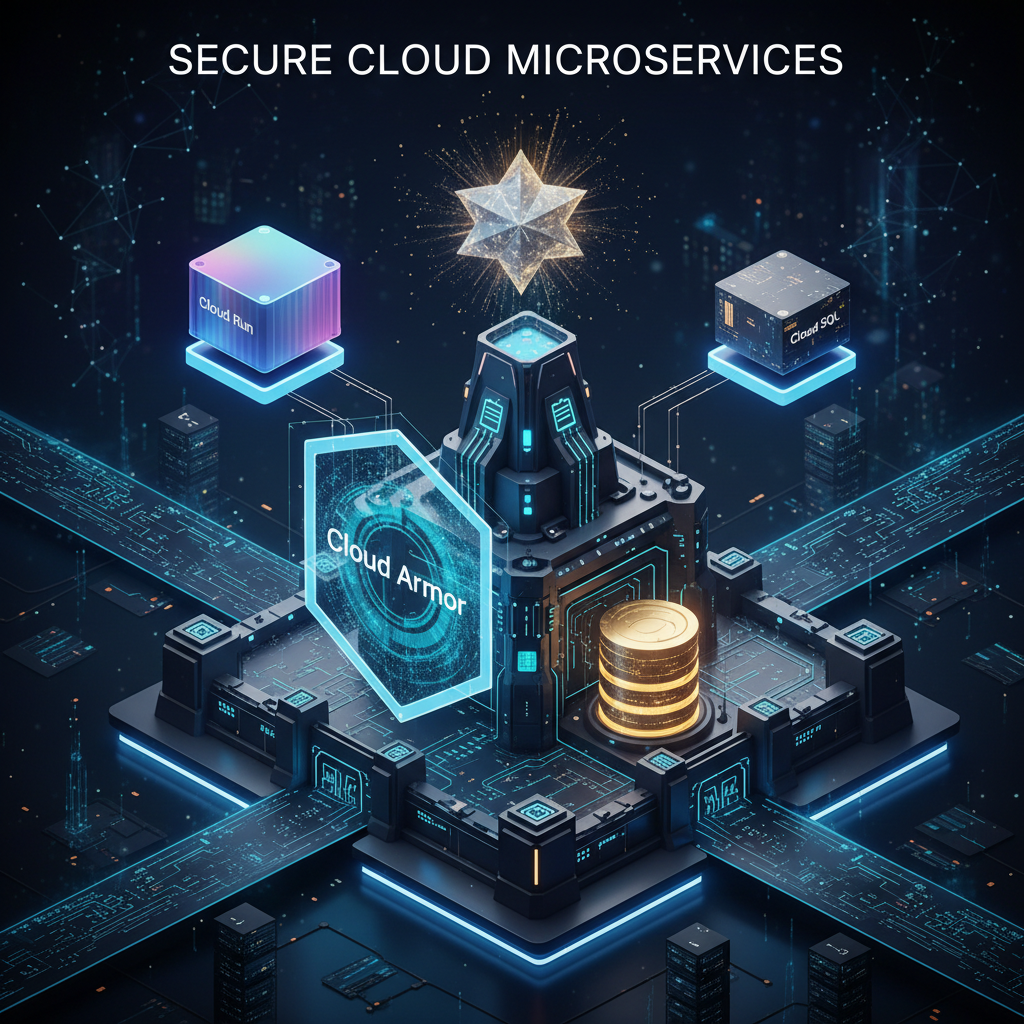
Welcome to Part 1 of the Microservices Workshop Series. Today, we aren’t just deploying Go code; we are building a Fortress.
👉 View the full source code on GitHub 👉 Technical Documentation Table of Contents
🏗️ The Blueprint: Security by Design
Before writing a single line of code, we defined a “Zero Trust” architecture for our microservice. Here is how it looks:
💡 The Core Pillars
- Isolation: The database has NO public IP. It lives entirely in a private VPC.
- Identity: The application runs under a dedicated Service Account with the absolute minimum permissions (Least Privilege).
- Edge Security: A Global Load Balancer combined with Cloud Armor acts as a Web Application Firewall (WAF) to block SQL Injection at the door.
- Closed Backdoor: Cloud Run is configured to reject any traffic that doesn’t come directly from our Load Balancer.
🚀 The Journey
I’ve structured this workshop into logical modules. Each step is detailed below so you can follow along.
📋 Prerequisites
- Go 1.25.6+ installed.
- Google Cloud SDK (
gcloud) installed and authenticated. - Cloud SQL Auth Proxy installed.
- PostgreSQL Client (
psql) installed. - Billing enabled on your Google Cloud Project.
Automated Setup Scripts
I’ve created scripts to verify and install dependencies. You can create a file named setup.sh (Linux) or setup_mac.sh (macOS) with the following content:
Linux (setup.sh):
1
2
3
4
5
6
7
#!/bin/bash
set -e
echo "🛠️  Checking and Installing Dependencies..."
read -p "This script will install Go 1.25.6, Google Cloud SDK, Cloud SQL Proxy, and PostgreSQL Client. Do you want to proceed? (y/N) " response
if [[ ! "$response" =~ ^([yY][eE][sS]|[yY])$ ]]; then exit 1; fi
# ... (Install commands for Go, gcloud, Proxy, psql)
echo "🎉 Dependency check complete!"
Run it with chmod +x setup.sh && ./setup.sh.
🛠️ Part 1: The Foundation (Database)
We start by creating the storage layer. We will use Cloud SQL (PostgreSQL).
1. Environmental Setup
Open your terminal and set these variables to save time later.
1
2
3
4
5
6
export PROJECT_ID="your-project-id-here"
export REGION="us-central1"
export DB_PASS="<YOUR_SECURE_PASSWORD>" # ⚠️ CHANGE THIS!
export INSTANCE_NAME="workshop-db"

gcloud config set project $PROJECT_ID
2. Authentication
Log in to Google Cloud and set up application default credentials.
1
2
gcloud auth login --no-launch-browser
gcloud auth application-default login --project $PROJECT_ID --no-launch-browser
3. Enable Google Cloud APIs
1
2
3
4
5
6
gcloud services enable \
    sqladmin.googleapis.com \
    run.googleapis.com \
    compute.googleapis.com \
    servicenetworking.googleapis.com \
    logging.googleapis.com
4. Network Setup
We need a secure private network (VPC) for our services to communicate.
1
2
3
4
5
6
7
8
9
10
11
12
13
14
15
16
17
18
# 1. Create VPC and Subnet
gcloud compute networks create workshop-vpc --subnet-mode=custom
gcloud compute networks subnets create workshop-subnet \
    --network=workshop-vpc \
    --range=10.0.0.0/24 \
    --region=$REGION

# 2. Configure Private Service Access (for Cloud SQL)
gcloud compute addresses create google-managed-services-default \
    --global \
    --purpose=VPC_PEERING \
    --prefix-length=16 \
    --network=workshop-vpc

gcloud services vpc-peerings connect \
    --service=servicenetworking.googleapis.com \
    --ranges=google-managed-services-default \
    --network=workshop-vpc
5. Create Database Instance & User
Note: This step takes 5-10 minutes.
1
2
3
4
5
6
7
8
9
10
11
12
# Create the instance
gcloud sql instances create $INSTANCE_NAME \
    --database-version=POSTGRES_16 \
    --tier=db-f1-micro \
    --edition=ENTERPRISE \
    --region=$REGION \
    --root-password=$DB_PASS \
    --network=workshop-vpc \
    --no-assign-ip

# Create the specific database
gcloud sql databases create users_db --instance=$INSTANCE_NAME
6. Seed the Data
Since we disabled the public IP, we connect via the Cloud SQL Auth Proxy.
- Enable Public IP (Temporarily):
gcloud sql instances patch $INSTANCE_NAME --assign-ip - Start Proxy:
./cloud-sql-proxy --port=5433 $PROJECT_ID:$REGION:$INSTANCE_NAME - Run SQL:
1
PGPASSWORD=$DB_PASS psql --host=127.0.0.1 --port=5433 --username=postgres --dbname=postgres
- SQL Commands:
1
2
3
4
5
6
7
CREATE USER go_workshop WITH PASSWORD '<YOUR_SECURE_PASSWORD>';
ALTER DATABASE users_db OWNER TO go_workshop;
\c users_db;
GRANT ALL ON SCHEMA public TO go_workshop;
CREATE TABLE IF NOT EXISTS users (id SERIAL PRIMARY KEY, username VARCHAR(50), email VARCHAR(100));
ALTER TABLE users OWNER TO go_workshop;
INSERT INTO users (username, email) VALUES ('cloud_runner', 'runner@example.com');
- Disable Public IP:
gcloud sql instances patch $INSTANCE_NAME --no-assign-ip
💻 Part 2: The Application (Go)
We build a Go service using Dependency Injection and a clean directory structure.
1. Initialize Project
1
2
3
4
mkdir go-workshop && cd go-workshop
go mod init github.com/youruser/go-workshop
mkdir models handlers middleware
go get github.com/jackc/pgx/v4
2. The Code
We implement models/user.go (Structs), middleware/basic_auth.go (Security), and handlers/user_handler.go (Business Logic).
The Entry Point (main.go):
1
2
3
4
5
6
7
8
9
10
11
12
13
14
15
16
17
package main
// ... imports ...

func main() {
    // Connect to DB using standard PGX driver
	dsn := fmt.Sprintf("host=%s port=%s user=%s password=%s dbname=%s sslmode=disable",
		os.Getenv("DB_HOST"), os.Getenv("DB_PORT"), os.Getenv("DB_USER"), os.Getenv("DB_PASS"), os.Getenv("DB_NAME"))
	db, _ := sql.Open("pgx", dsn)

    // Wrap Handler with Middleware
	authHandler := &middleware.BasicAuth{
		Username: os.Getenv("AUTH_USER"),
		Password: os.Getenv("AUTH_PASS"),
		Next:     &handlers.UserHandler{DB: db},
	}
	http.ListenAndServe(":"+os.Getenv("PORT"), authHandler)
}
🤖 AI-Assisted Testing: One of the coolest parts of this workflow is that all unit tests were generated by Gemini. By using standard interfaces and dependency injection, we could simply ask the AI: “Generate table-driven tests for this handler using go-sqlmock”, and it produced robust, ready-to-run test code.
3. Containerization
We create a multi-stage Dockerfile using golang:1.25.6-trixie for building and debian:trixie-slim for the runtime to ensure a small, secure footprint.
🚀 Part 4: Deployment (Cloud Run)
1. Service Account Setup
The app needs an identity. We create workshop-sa and grant it only roles/cloudsql.client.
1
2
3
4
gcloud iam service-accounts create workshop-sa --display-name="Workshop SA"
gcloud projects add-iam-policy-binding $PROJECT_ID \
    --member="serviceAccount:workshop-sa@$PROJECT_ID.iam.gserviceaccount.com" \
    --role="roles/cloudsql.client"
2. Deploy
We build the container and deploy it, connecting it to our VPC so it can reach the private database.
1
2
3
4
5
6
7
8
9
10
11
12
13
14
15
16
17
18
19
20
21
22
23
24
25
# Build
cd go-workshop
gcloud builds submit --tag gcr.io/$PROJECT_ID/go-workshop
cd ..

# Get Private IP
export DB_HOST=$(gcloud sql instances describe $INSTANCE_NAME \
    --flatten="ipAddresses[]" \
    --format="csv[no-heading](ipAddresses.ipAddress, ipAddresses.type)" | grep ",PRIVATE" | cut -d',' -f1)

# Deploy with Direct VPC Egress
gcloud run deploy go-service \
    --image gcr.io/$PROJECT_ID/go-workshop \
    --region $REGION \
    --allow-unauthenticated \
    --service-account workshop-sa@$PROJECT_ID.iam.gserviceaccount.com \
    --network=workshop-vpc \
    --subnet=workshop-subnet \
    --set-env-vars DB_HOST="$DB_HOST" \
    --set-env-vars DB_PORT="5432" \
    --set-env-vars DB_USER="go_workshop" \
    --set-env-vars DB_NAME="users_db" \
    --set-env-vars DB_PASS="$DB_PASS" \
    --set-env-vars AUTH_USER="admin" \
    --set-env-vars AUTH_PASS="<YOUR_AUTH_PASSWORD>"
🌐 Part 5 & 6: The Shield (Load Balancer & Cloud Armor)
Finally, we put the service behind a Global Load Balancer and attach a Cloud Armor security policy.
- Reserve IP:
gcloud compute addresses create workshop-lb-ip --global - Create NEG:
gcloud compute network-endpoint-groups create go-service-neg ... - Setup Load Balancer: Create Backend Service, URL Map, Proxy, and Forwarding Rule.
- Cloud Armor: Create a policy
workshop-armor-policywith ruleevaluatePreconfiguredExpr('sqli-stable')to block SQL injection. - Restrict Ingress:
1
gcloud run services update go-service --region $REGION --ingress internal-and-cloud-load-balancing
✅ Final Verification
Test your fortified service:
- Valid Request:
curl -u admin:<PASS> http://[LB_IP]/-> 200 OK (JSON Data) - Direct Access:
curl https://[RUN_URL].run.app-> 403 Forbidden (Access Denied) - SQL Injection:
curl "http://[LB_IP]/?id=1' OR 1=1"-> 403 Forbidden (Blocked by WAF)
📚 Detailed Documentation
For a deep dive into the technical specifics, including architecture diagrams, line-by-line code explanations, and script breakdowns, visit the detailed documentation in the repository:
👉 Technical Documentation Table of Contents 👉 View the full source code on GitHub
🏁 Conclusion
You have successfully built a secure, scalable microservice architecture on GCP. This isn’t just a demo; it’s a production-ready pattern you can adapt for your own applications.
🔮 What’s Next?
In Part 2, we will add distributed caching with Cloud Memorystore (Valkey) and evolve our Basic Auth into a robust JWT-based Authentication system. Stay tuned!
Published on nja.dev — January 2026